How to Use an Audio Interface
To use an audio interface, connect it to your computer over USB, choose it as the input and output device in your DAW, plug a mic or guitar into the front input, turn the gain up until your loudest part stays green, and turn on direct monitoring so you hear yourself with no delay. The controls below follow the Focusrite Scarlett 2i2 4th Gen user guide.
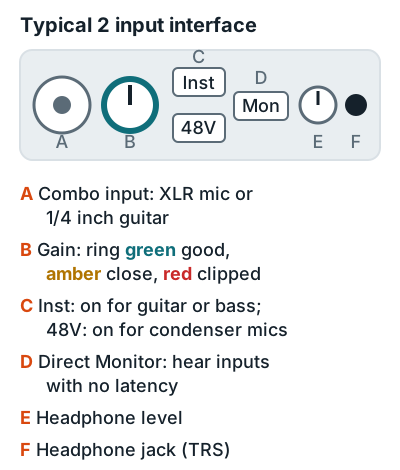
Set up and record in 6 steps
- Connect and install. Plug in the USB cable and install the maker's control app; on Windows it also installs the ASIO driver. Mac and PC details: how to connect an audio interface to a computer.
- Pick the interface in your DAW. In the audio settings, set the input and output device to the interface (on Windows, choose the ASIO driver). Start with a 128 sample buffer for recording.
- Plug in your source (A). Mics take an XLR cable. Guitar or bass takes a 1/4 inch TS cable, then press Inst (C).
- Turn on 48V only if needed (C). Condenser mics need phantom power; for anything else, check the spec sheet. On the 2i2 it feeds both XLR inputs at once, and what phantom power does explains when it matters.
- Set the gain (B). Sing or play your loudest part and turn the knob up until the ring shows green. Amber means you're close to clipping, red means you clipped, so back off. Target levels are on the gain staging page.
- Monitor and record (D, E, F). Plug TRS headphones into the interface, press Direct Monitor, set the headphone level, then arm a track and hit record.
Direct Monitor's mono setting centers both inputs; stereo pans input 1 left and input 2 right. Still shopping? Compare the best audio interfaces for home recording.
Related questions
Do I turn on 48V for every mic?
No. Turn on 48V phantom power only for condenser mics and other gear whose spec sheet asks for it.
Why can't I hear myself through the interface?
Either direct monitoring is off or the headphone level is down. Turn on Direct Monitor and raise the headphone knob, or arm the track with input monitoring on in your DAW.
Should I plug headphones into the interface or the computer?
Into the interface. Its headphone output carries both your live input and the DAW playback, so you hear the take and the backing track together.
More answers: Home recording FAQ