Sample Rate and Bit Depth for Recording
Record at 48 kHz sample rate and 24-bit bit depth. That captures every frequency you can hear and gives you 144 dB of dynamic range, more than an interface like the Scarlett 2i2 delivers, for 17.3 MB per stereo minute. Going higher mostly buys you bigger files and a heavier processing load.
Set both before the first take of a project.
Settings to use
For music, podcasts, and voice over at home, 48 kHz and 24-bit is the default to pick. The AES5 standard recommends 48 kHz "for the origination, processing, and interchange of audio programs."
| Job | Sample rate | Bit depth |
|---|---|---|
| Music, demos, vocals | 48 kHz (44.1 kHz fine) | 24-bit |
| Anything synced to video | 48 kHz | 24-bit |
| Podcast, voice over | 48 kHz | 24-bit |
| Streaming master | Session rate | 24-bit |
| CD master | 44.1 kHz | 16-bit, dithered |
What bit depth does
Bit depth sets the dynamic range of each sample (the gap between the loudest sound a file can hold and its own noise floor), at about 6 dB per bit. Apple's Logic Pro guide lists 16-bit at 96 dB and 24-bit at 144 dB. It calls 24-bit the most commonly used bit depth and notes that those files are 50 percent larger.
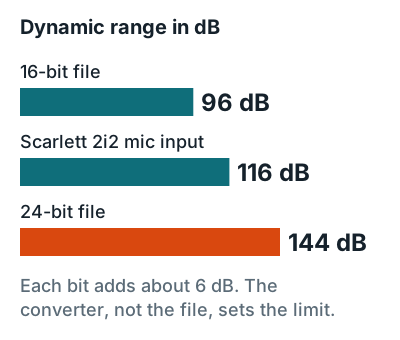
That extra range is what lets you leave headroom. At 24-bit, peaks at minus 12 dBFS still keep quiet passages far above the noise floor. At 16-bit, Apple notes quantization distortion at very low levels. Setting levels is covered in gain staging.
In practice, your interface is the real ceiling, not the file. The Focusrite Scarlett 2i2 4th Gen lists 116 dB (A-weighted) of dynamic range on its mic inputs, which fits well inside a 24-bit file.
What sample rate does
Sample rate is how many times per second the converter measures the signal. It captures frequencies up to half that number. Columbia University's Computer Music Center explains that 44.1 kHz reaches 22.05 kHz, above the roughly 20,000 Hz limit of human hearing.
| Sample rate | Highest frequency | Where it's used |
|---|---|---|
| 44.1 kHz | 22.05 kHz | CD standard |
| 48 kHz | 24 kHz | Video, broadcast, AES5 recommendation |
| 96 kHz | 48 kHz | Higher-bandwidth work, per AES5 |
| 192 kHz | 96 kHz | Specialist work |
Higher rates aren't free. Apple's Logic Pro sample rate page says higher rates "use up more disk space" and "require more processing," which means fewer plugins before your computer stalls.
File sizes
A stereo minute at 48 kHz and 24-bit is 17.3 MB of uncompressed WAV. Mono is half that, so a 3-minute song with 24 mono tracks takes about 620 MB.
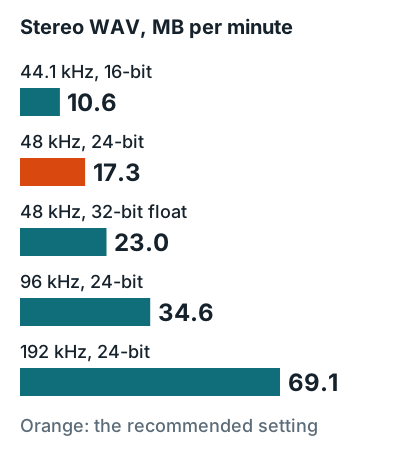
Full file size table (MB per minute, WAV)
| Setting | Mono | Stereo |
|---|---|---|
| 44.1 kHz, 16-bit | 5.3 | 10.6 |
| 44.1 kHz, 24-bit | 7.9 | 15.9 |
| 48 kHz, 16-bit | 5.8 | 11.5 |
| 48 kHz, 24-bit | 8.6 | 17.3 |
| 48 kHz, 32-bit float | 11.5 | 23.0 |
| 96 kHz, 24-bit | 17.3 | 34.6 |
| 192 kHz, 24-bit | 34.6 | 69.1 |
Which file format to record and export in
Record in WAV, or AIFF on a Mac. Both are lossless, so nothing is lost when you edit. MP3 throws data away to shrink the file, and every re-save loses more, so keep it for the final copy you send or upload. Spotify prefers FLAC for delivery, but for email, demos and websites you'll usually want an MP3. WAV vs MP3 explains what you give up when you convert.
32-bit float
32-bit float files are 33 percent larger than 24-bit, and they can hold peaks above 0 dBFS inside the DAW. Apple's Logic Pro guide says you can remove digital clipping in a 32-bit float recording by lowering the region gain.
There's a catch: that only helps if the converter didn't clip first. Solid State Logic's 32-bit conversion article says you still have to set gain, because a signal too hot for the converter gets clipped at exactly 0 dBFS.
Use 24-bit
Most sessions
Smaller files, and the converter's range already sits inside 144 dB.
Use 32-bit float
Heavy editing
Protects plugins and edits from clipping. It doesn't protect the input stage.
How to set it
Set the rate in two places, the interface and the DAW project, and make them match.
- Set the interface. On a Mac, open Audio MIDI Setup, select the interface, and set the sample rate and bit depth in the Format pop-up menu. On Windows, use the interface's control software.
- Set the DAW project. Choose 48 kHz and 24-bit in the project or session settings before recording.
- Lock it in. Avid's Pro Tools guide says the sample rate "is locked once the session is created," while bit depth can change and applies only to new recordings.
- Export at the session rate. Spotify's file requirements ask for 44.1 kHz or higher, 24-bit if that's your native master, and no 16-bit copy made from a 24-bit master.
The full song workflow lives in how to record music at home, and whether a better interface changes any of this is answered in does an audio interface improve sound quality.
FAQ
Is 24-bit better than 16-bit for recording?
Yes. 24-bit gives 144 dB of dynamic range against 96 dB for 16-bit, so you can record with lower peaks and stay far above the noise floor. Keep 16-bit for CD masters only.
Does a higher sample rate sound better?
Not audibly for most home recordings. 44.1 kHz already captures up to 22.05 kHz, above the roughly 20 kHz limit of human hearing, while 96 kHz doubles file size and processing load.
Can I change the sample rate after recording?
Avoid it. Pro Tools locks a session's sample rate once it's created, and Apple says not to change a Logic project's rate after audio is recorded.
Should I use 44.1 kHz or 48 kHz for music?
Either works. Use 48 kHz if the song might end up with video, since AES5 recommends 48 kHz for audio production; 44.1 kHz is fine for music-only releases.